
GUIDE
How to display a menu on a TV
By Rune Breinholt Andersen · Updated November 19, 2026
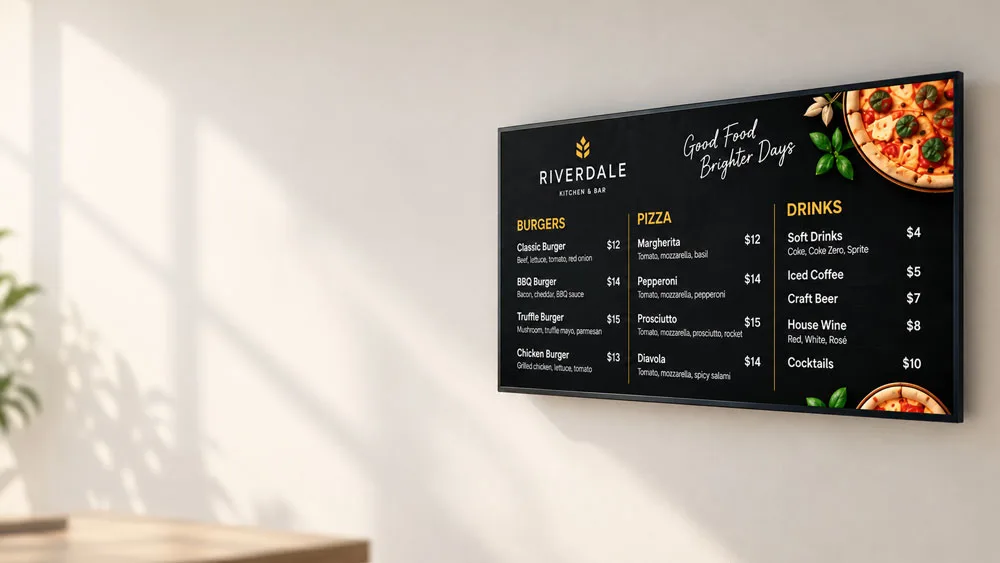
A TV is the simplest way to turn a printed menu into a digital menu board. You probably already own one, and with the right setup you can update prices without reprinting anything. This guide explains the five common ways to display a menu on a TV, what each one costs and how to set it up step by step.
What you need
- A TV or display. A regular landscape TV works. Commercial displays are brighter and built to run all day, but they cost more.
- A way to show content on it. A USB stick, the TV’s own web browser, a streaming stick, a small computer or a digital signage player.
- Your menu in a screen format. Either an image or video you design yourself, or a menu created in digital menu board software.
- Power and, for most options, internet. Wired internet is the most reliable, but Wi-Fi works for most restaurants.
5 ways to display a menu on a TV
Looking for a specific device? See our overview of screens and devices that work with MenuScreen.
1. USB stick with an image or video
Design your menu as an image, copy it to a USB stick and play it with the TV’s built-in media player. It costs nothing extra, but every change means editing the design, exporting a new file and walking to the TV. Many TVs also show menus or on-screen messages, and some turn off the slideshow after a while.
Best for: a menu that almost never changes.
2. The TV’s web browser
Many smart TVs have a built-in web browser. If your menu lives online, you open its link on the TV, switch to full screen, and the TV shows the latest version every time it loads. This is the cheapest way to get a menu that updates itself.
Best for: one or two screens and a smart TV with a decent browser.
3. A streaming stick or media player
A streaming stick or small media player plugs into the TV’s HDMI port. If it has a web browser, it can open your menu link just like a smart TV. It is a good upgrade when the TV’s own browser is slow or limited. Step by step: how to show a menu on an Android TV or Fire TV stick.
Best for: older TVs or TVs without a good browser.
4. A mini PC or Raspberry Pi
A small computer connected via HDMI can open your menu in a browser in kiosk mode, so only the menu is visible. It takes a little more setup, but it gives you full control and can start the menu automatically when the power comes on.
Best for: restaurants that want a reliable, hands-off setup.
5. A digital signage player
If you already use digital signage software for promotions or several locations, you can usually add your menu as a web page or URL inside it. Your menu then plays alongside your other content.
Best for: chains and businesses that already have a signage platform.
Step by step: display your menu on a TV with MenuScreen
MenuScreen connects a TV to your account the same way streaming apps do: scan a QR code with your phone, or type a 6-digit code. You only type a short web address on the TV once. After that, you choose what it shows from your phone or computer. This works with options 2 to 5 above.
- Create your menu. Add your categories, items and prices in MenuScreen, choose a template, add your logo and press Publish.
- Open app.menuscreen.io/tv on the TV. Use the TV’s web browser, or the browser on a streaming stick, mini PC or signage player. The TV shows a QR code and a large 6-digit code.
- Scan the QR code with your phone, or enter the code. The QR code opens MenuScreen on your phone with the code already filled in. Sign in if asked, name the TV (for example “Counter TV”) and confirm. With one menu it is chosen for you; with several, you pick the one this TV should show. No phone at hand? On any computer, go to Screens, choose Add screen and type the 6-digit code.
- Press OK for full screen. The TV shows a full-screen button that is already selected, so one press on the remote’s OK button hides the browser bar. MenuScreen also asks the browser to keep the screen awake.
- Turn off sleep and energy saving on the TV. Many TVs switch off or dim after a few hours without input. Disable auto power off, screen savers and eco modes.
- Change the menu any time from Screens. Switch which menu a TV shows, rename it or remove it without touching the TV. Changes appear within about a minute, and the TV remembers its menu after a restart or a short internet outage.
Recommended hardware: if your TV’s browser is slow or missing, a Google TV streaming device or an Amazon Fire TV Stick with a web browser is an affordable way to run MenuScreen on any TV with an HDMI port. See our Fire TV and Android TV setup guide.
Already using a display link? Direct links still work. You find them in the menu under Show on TV → Advanced: direct link, which is handy for signage players that only accept a URL.

Tips for a menu TV that runs all day
- Use landscape 16:9. It is the standard TV format, and most menu templates are designed for it.
- Set the right picture mode. Store or vivid modes are often too bright for text. A standard mode with slightly lower brightness is easier to read.
- Mount at reading height. Customers should be able to read the board from where they queue without tilting their head back.
- Prefer a wired connection. An ethernet cable avoids menus that stop updating because the Wi-Fi drops.
- Check it after changes. When you update prices, glance at the screen to confirm the new version is showing.
Troubleshooting
The menu does not fill the screen. Switch the browser to full screen and set the TV’s picture size to fit or full pixel, so it does not crop or zoom.
The TV turns off by itself. Look for auto power off, sleep timer or eco settings in the TV menu and turn them off.
The browser bar is visible. Press OK on the remote while the “Press OK for full screen” button is showing, or reload the page to bring the button back. You can also use the browser’s own full-screen or kiosk mode.
The TV shows a new code instead of the menu. The TV was removed from Screens, or its location was deleted. Add it again with the new code.
The TV says “Waiting for a menu”. The TV is connected but has no menu yet. Go to Screens and choose Change menu.
Want the full overview of setups and devices? See how MenuScreen works as a TV menu board.
FAQ
Questions about menus on TVs
Can I display a menu on any TV?
Most TVs can show a menu. If the TV has a web browser, or you connect a streaming stick, mini PC or signage player to it, it can show a digital menu that updates online.
Do I need a smart TV to show a menu?
No. A regular TV with an HDMI port works. Connect a device with a web browser, open your menu link and switch to full screen.
What is the cheapest way to put a menu on a TV?
Using the web browser on a smart TV you already own. You only pay for the menu software, and there is no extra hardware.
How do I update the menu on the TV?
With a USB stick you need a new file each time. With a web-based menu like MenuScreen you change the price online, and the TV shows the update automatically.
Put your menu on a TV today
Create your digital menu board in minutes and try MenuScreen free for 14 days. No credit card required.