
GUIDE
How to show a menu on an Android TV or Fire TV stick
By Rune Breinholt Andersen · Updated November 19, 2026
A streaming stick is the cheapest way to turn any TV or monitor with HDMI into a digital menu board. This guide shows how to put your MenuScreen menu on an Android TV, Google TV or Amazon Fire TV stick in about ten minutes, and how to keep it on the screen all day.
What you need
- A TV or monitor with an HDMI input.
- An Android TV, Google TV or Fire TV stick, plugged into its own power adapter (not the TV’s USB port, which often gives too little power).
- Wi-Fi at the restaurant.
- A MenuScreen menu. Start a free trial if you don’t have one yet.
Step 1: Connect the stick and pick the right input
Plug the stick into an HDMI port and connect power. Use the TV’s Source or Input button to choose that HDMI port, then follow the stick’s setup and connect it to your Wi-Fi.
Tip: if the screen says “No signal”, check that the stick has a light, press the power button on the stick’s remote, and use the HDMI extender that came in the box. Some computer monitors cannot show a TV stick’s signal at all; a normal TV always can.
Step 2: Install a browser
- Fire TV: the Amazon Silk browser is usually installed already. If not, search for “Silk” in the app store.
- Android TV and Google TV: most sticks have no browser. Open Google Play on the TV and install a free TV browser such as TV Bro.
Step 3: Open the TV page and scan the code
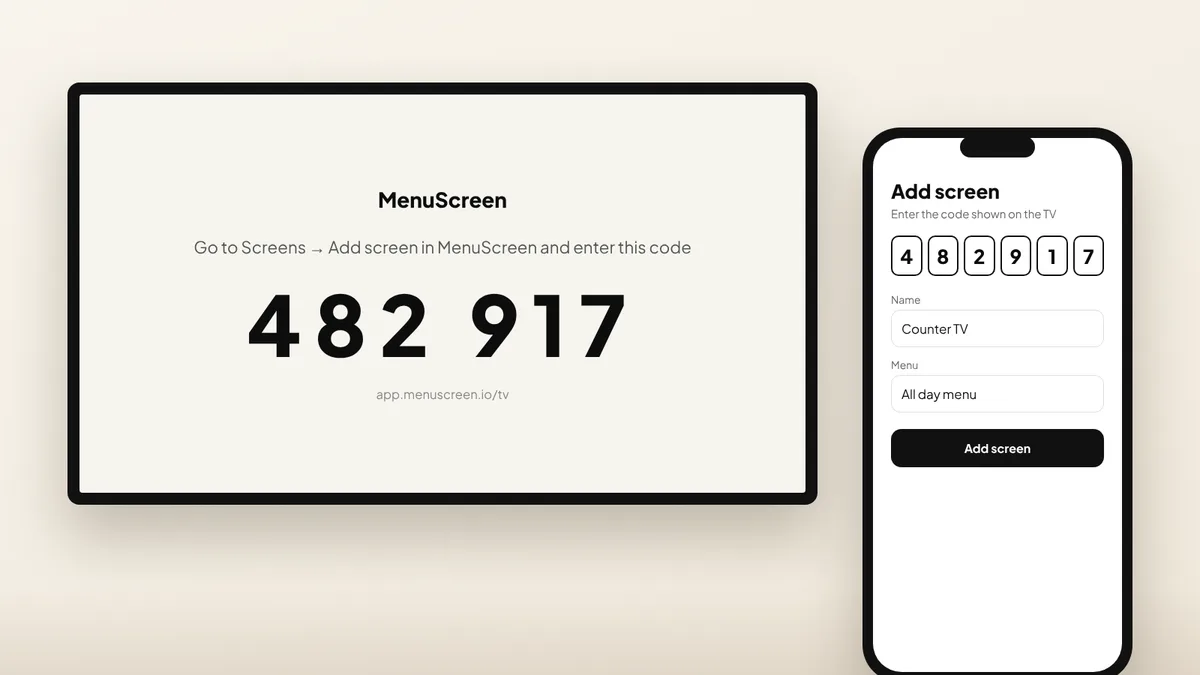
- In the browser, go to app.menuscreen.io/tv.
- The TV shows a QR code and a 6-digit code.
- Scan the QR code with your phone and sign in to MenuScreen, or go to Screens → Add screen and type the code.
- Choose which menu the screen should show. It appears on the TV within seconds.
Press OK on the remote to go full screen. From now on, every change you make on your phone shows up on the TV by itself.
Step 4: Keep the menu on the screen
- Turn off the screen saver. Fire TV: Settings → Display & Sounds → Screen Saver → Start Time → Never. Google TV: Settings → System → Ambient mode (or Energy) and turn off sleep and the screen saver.
- Turn off the TV’s own sleep timer and “auto power off” in the TV’s settings.
- After a power cut, open the browser again. Your MenuScreen page remembers the pairing, so the menu comes straight back without a new code.
Which stick should I buy?
Any recent Android TV, Google TV or Fire TV stick works, as long as it gets software updates (Android 8 or newer, or Fire OS 7 or newer). A basic HD model is enough for a menu; you don’t need 4K. Read more about screens and players in our guide to displaying a menu on a TV and our digital menu board cost guide.
FAQ
Questions about TV sticks
Can I use a Fire TV Stick as a digital menu board?
Yes. Open app.menuscreen.io/tv in the Silk browser, scan the code with your phone and choose a menu. Turn off the screen saver so the menu stays on.
Does the menu update by itself?
Yes. When you change a price or mark a dish as sold out in MenuScreen, the TV picks up the change within a minute. You never have to touch the stick again.
What happens if the internet goes down?
The TV keeps showing the last menu it loaded and updates again when the connection is back.
Put your menu on a TV today
Try MenuScreen free for 14 days, no credit card required.